Sign Up via Outlook (new)
- Enter your university email address.
- Enter your password.
Outlook (new) will then automatically connect to your Outlook mailbox.
Sign Up via Thunderbird
- Enter your university email address and password.
- Select "Manual Setup."
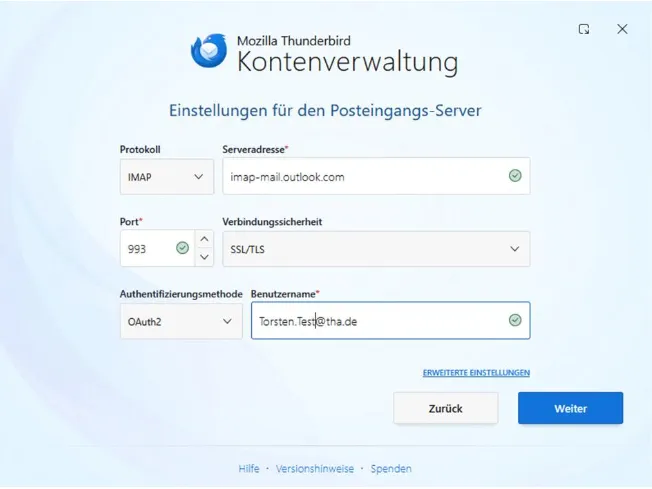
- Configure the following settings for the incoming mail server:
- Protocol: IMAP
- Server address: imap-mail.outlook.com
- Port: 993
- Connection security: SSL/TLS
- Authentication method: OAuth2
- Username: Your university email address (e.g., vorname.nachname(at)tha.de
4. Click Next.
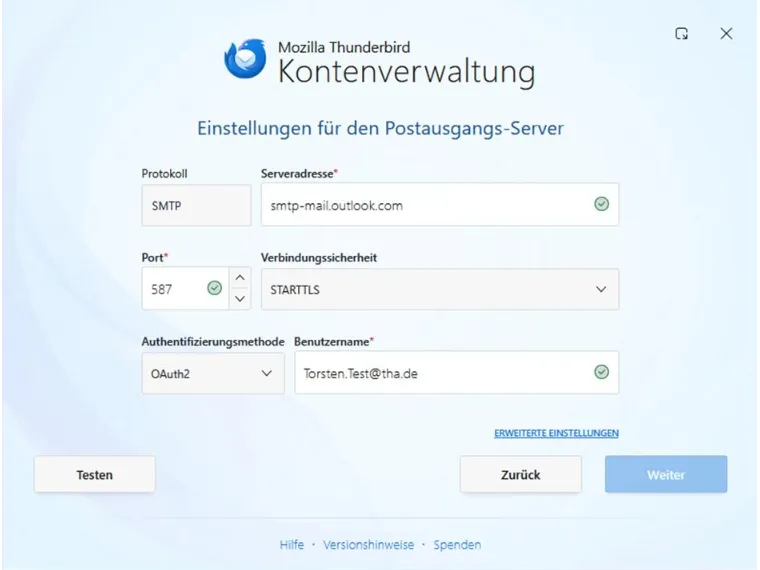
5. Configure the following settings for the outgoing mail server:
- Protocol: SMTP
- Server address: smtp-mail.outlook.com
- Port: 587
- Connection security: STARTTLS
- Authentication method: OAuth2
- Username: Your university email address (e.g., vorname.nachname@tha.de)
Click “Test” and then “Next.” Next, enter the password for your RZ ID and save it if necessary. Then click “Next” again.
Alternative Login Without OAuth2
If the “OAuth2” option is not available in Step 3 or Step 5, first select “Password, normal.” After Step 9, you will likely see the message “Authentication error.” Then proceed as follows:
6. Click “Back.”
7. Do not change any settings, and open “Advanced Settings.”
8. Confirm the message by clicking “OK.”


9. Go to "Account Settings.
" 10. Open the "Server Settings" section.
11. Change the authentication method to "OAuth2."
You may be prompted to sign in again after step 11.
Next, check whether you can send and receive emails in Thunderbird. If so, the setup was successful.

Subscribe to a folder in Thunderbird
After setting up your email account in Thunderbird, only the Inbox may be visible at first. To make other folders (such as Sent, Drafts, or Archive) visible, you must subscribe to them.
1. Right-click your email account.
2. Select “Subscribe…” from the context menu.

3. In the folder list, select the folders you want to display in Thunderbird.
4. Click “OK.”
5. The selected folders will then appear in Thunderbird.